Your Ad Here

.

30 Blogger | Add Reply Tag To The Comments

The most awaited and anticipated hack for Blogger Blogs was always a "Reply" tag to the comments like Wordpress. Now, you don't have to wait for an official release from the Blogger Team. Thanks to Marcher, a young blogger from China, who wrote this awesome and much easier hack for a BIG demand. Moreover, it's much easier too to install. As he writes his blog in Chinese I thought to post an English version of this hack for the English audience from Blogger platform with some added flavours from my end like I replaced Text with reply button image and changed the placing of code in the template.


Reply To Comments Made Easy


The Steps For Installation:

Important! Save a backup of your existing template before making any changes.


Go to Blogger > Layout > Edit HTML > Expand Widgets Template, find <b:include data='comment' name='commentDeleteIcon'/> </span> and paste the following code just after it;

Code:
<span><a expr:href='&quot;https://www.blogger.com/comment.g?blogID=YOUR BLOG ID HERE&amp;postID=&quot; + data:post.id + &quot;&amp;isPopup=true&amp;postBody=%40%3C%61%20%68%72%65%66%3D%22%23&quot; + data:comment.anchorName + &quot;%22%3E&quot; + data:comment.author + &quot;%3C%2F%61%3E#form&quot;' onclick='javascript:window.open(this.href, &quot;bloggerPopup&quot;, &quot;toolbar=0,location=0,statusbar=1,menubar=0,scrollbars=yes,width=450,height=450&quot;); return false;'><img alt='Reply To This Comment' src='YOUR REPLY BUTTON IMAGE URL HERE'/></a></span>


Now, in the above code replace the texts in BLUE with your "Blog ID" and the texts in RED with the "Reply Button Image Url".

That's it! Now, save the template and feel good to have a new look of your blog.

Read More...

4 Google Buzz Share Icons With Rollover (Hover) Effect

For the last few days the entire web is buzzing about "Google Buzz", a big step towards social media venture by Google. The whole blogosphere too is full with "Buzz" mantra from all possible ways like articles, comments, criticism etc. And among the all "Buzz" things flooded around the web I liked most was the "Google Buzz Social Icons" by Chethstudios, and picked the PSD source then added a little piece of my creativity (hope you all would like them) and came up with a few Icons with rollover (hover) effect codes that you can place in your blog to allow visitors to click and add the articles to Google Reader they like to.


Google Buzz Icons

So, here are the codes, just hover the mouse over each Icon image below to see the effect and copy the code just below the respective image you like to place on your blog;

Buzz this

Code:
<a expr:href='&quot;http://www.google.com/reader/link?url=&quot; + data:post.url + &quot;&amp;title=&quot; + data:post.title' target='_blank' title='Google'><img alt='Buzz This' onmouseout='this.src=&quot;https://blogger.googleusercontent.com/img/b/R29vZ2xl/AVvXsEhuLpKFeVlC5D3YvWDc4OleKR4M1hP1ekIgjyMLopGptSZFF_XCq13eSrAPJbZBdogKyc3RtXx5XWuAxrtQkpVABcfQQ8aVfTgNFT7eLgMZcmJeYjD79lrHi93vVVIp-8WDEKjHrJX5YciO/s1600/g_buzz1.png&quot;' onmouseover='this.src=&quot;https://blogger.googleusercontent.com/img/b/R29vZ2xl/AVvXsEhnZyAf_92NZajynVC6CiX67RqNKYtsHwuYW-opdt1clvKFuSusVWYEqA6dg4MwTe1xLlZF2asBgETDD-ZvmsZZ6BcvRAFF3dyyhxQNV73crPmYp5uhc57fHxhD7VOKcX_ytauY3qXtuTzz/s1600/g_buzz7.png' src='https://blogger.googleusercontent.com/img/b/R29vZ2xl/AVvXsEhuLpKFeVlC5D3YvWDc4OleKR4M1hP1ekIgjyMLopGptSZFF_XCq13eSrAPJbZBdogKyc3RtXx5XWuAxrtQkpVABcfQQ8aVfTgNFT7eLgMZcmJeYjD79lrHi93vVVIp-8WDEKjHrJX5YciO/s1600/g_buzz1.png'/></a>


Buzz this

Code:
<a expr:href='&quot;http://www.google.com/reader/link?url=&quot; + data:post.url + &quot;&amp;title=&quot; + data:post.title' target='_blank' title='Google'><img alt='Buzz This' onmouseout='this.src=&quot;https://blogger.googleusercontent.com/img/b/R29vZ2xl/AVvXsEhrU1SguQvBL74cC7Y8p3YIXm_lRVHAoBeaahwkJ62iCiNd4yMH4jSot7cAdCHfC7e3wnjxwMEG9o0e__1Ppmraty3jJfLT4s3I-RoiWSJPKPIltCke7nZSY5iKGtMsedZxSUESfdzHiQux/s1600/g_buzz2.png&quot;' onmouseover='this.src=&quot;https://blogger.googleusercontent.com/img/b/R29vZ2xl/AVvXsEhnZyAf_92NZajynVC6CiX67RqNKYtsHwuYW-opdt1clvKFuSusVWYEqA6dg4MwTe1xLlZF2asBgETDD-ZvmsZZ6BcvRAFF3dyyhxQNV73crPmYp5uhc57fHxhD7VOKcX_ytauY3qXtuTzz/s1600/g_buzz7.png' src='https://blogger.googleusercontent.com/img/b/R29vZ2xl/AVvXsEhrU1SguQvBL74cC7Y8p3YIXm_lRVHAoBeaahwkJ62iCiNd4yMH4jSot7cAdCHfC7e3wnjxwMEG9o0e__1Ppmraty3jJfLT4s3I-RoiWSJPKPIltCke7nZSY5iKGtMsedZxSUESfdzHiQux/s1600/g_buzz2.png'/></a>


Buzz this

Code:
<a expr:href='&quot;http://www.google.com/reader/link?url=&quot; + data:post.url + &quot;&amp;title=&quot; + data:post.title' target='_blank' title='Google'><img alt='Buzz This' onmouseout='this.src=&quot;https://blogger.googleusercontent.com/img/b/R29vZ2xl/AVvXsEjPZgCmNzE8DbVt-WR6gBFLlWJUePyuWJpn1nNrmSrW9V6XGk1417ml_t1ihnLp9SmYsob1Wu9SSGxgEeZ7a4h9mM9vAgsCj-IrwEcAoS-pEaeBZIT6tq1BQjC4X44zdH82OUUzEnwhngUP/s1600/g_buzz3.png&quot;' onmouseover='this.src=&quot;https://blogger.googleusercontent.com/img/b/R29vZ2xl/AVvXsEhnZyAf_92NZajynVC6CiX67RqNKYtsHwuYW-opdt1clvKFuSusVWYEqA6dg4MwTe1xLlZF2asBgETDD-ZvmsZZ6BcvRAFF3dyyhxQNV73crPmYp5uhc57fHxhD7VOKcX_ytauY3qXtuTzz/s1600/g_buzz7.png' src='https://blogger.googleusercontent.com/img/b/R29vZ2xl/AVvXsEjPZgCmNzE8DbVt-WR6gBFLlWJUePyuWJpn1nNrmSrW9V6XGk1417ml_t1ihnLp9SmYsob1Wu9SSGxgEeZ7a4h9mM9vAgsCj-IrwEcAoS-pEaeBZIT6tq1BQjC4X44zdH82OUUzEnwhngUP/s1600/g_buzz3.png'/></a>


Buzz this

Code:
<a expr:href='&quot;http://www.google.com/reader/link?url=&quot; + data:post.url + &quot;&amp;title=&quot; + data:post.title' target='_blank' title='Google'><img alt='Buzz This' onmouseout='this.src=&quot;https://blogger.googleusercontent.com/img/b/R29vZ2xl/AVvXsEh1ydIPbDZRgExo6wcN6tRoZQnZDzZpFsuq6uOW69y8UoRinlZBQxLv-Xn2ZhYEjSCyc1BvJbsFXcuQQDBBpdBJdDYmduTHXF-zlLsATKRFPxiiwPj42DjQo2o80ON6b1c1eym1G35nVRsf/s1600/g_buzz4.png&quot;' onmouseover='this.src=&quot;https://blogger.googleusercontent.com/img/b/R29vZ2xl/AVvXsEhnZyAf_92NZajynVC6CiX67RqNKYtsHwuYW-opdt1clvKFuSusVWYEqA6dg4MwTe1xLlZF2asBgETDD-ZvmsZZ6BcvRAFF3dyyhxQNV73crPmYp5uhc57fHxhD7VOKcX_ytauY3qXtuTzz/s1600/g_buzz7.png' src='https://blogger.googleusercontent.com/img/b/R29vZ2xl/AVvXsEh1ydIPbDZRgExo6wcN6tRoZQnZDzZpFsuq6uOW69y8UoRinlZBQxLv-Xn2ZhYEjSCyc1BvJbsFXcuQQDBBpdBJdDYmduTHXF-zlLsATKRFPxiiwPj42DjQo2o80ON6b1c1eym1G35nVRsf/s1600/g_buzz4.png'/></a>


Buzz this

Code:
<a expr:href='&quot;http://www.google.com/reader/link?url=&quot; + data:post.url + &quot;&amp;title=&quot; + data:post.title' target='_blank' title='Google'><img alt='Buzz This' onmouseout='this.src=&quot;https://blogger.googleusercontent.com/img/b/R29vZ2xl/AVvXsEimUK7uQ0Ha5QKLD6pYpWjmGzNZ7ASJYD7aJnP3kn6_fdHU3BI6SGWdjnr8dASlK2sc_qs0RAlZ7YjMkkpOLZnMTUhrRMYpsmURZNjjjmoFJlIfC3sELfACkEgIi_YktQk5TcqnVmk1QQ1U/s1600/g_buzz5.png&quot;' onmouseover='this.src=&quot;https://blogger.googleusercontent.com/img/b/R29vZ2xl/AVvXsEhnZyAf_92NZajynVC6CiX67RqNKYtsHwuYW-opdt1clvKFuSusVWYEqA6dg4MwTe1xLlZF2asBgETDD-ZvmsZZ6BcvRAFF3dyyhxQNV73crPmYp5uhc57fHxhD7VOKcX_ytauY3qXtuTzz/s1600/g_buzz7.png' src='https://blogger.googleusercontent.com/img/b/R29vZ2xl/AVvXsEimUK7uQ0Ha5QKLD6pYpWjmGzNZ7ASJYD7aJnP3kn6_fdHU3BI6SGWdjnr8dASlK2sc_qs0RAlZ7YjMkkpOLZnMTUhrRMYpsmURZNjjjmoFJlIfC3sELfACkEgIi_YktQk5TcqnVmk1QQ1U/s1600/g_buzz5.png'/></a>


Buzz this

Code:
<a expr:href='&quot;http://www.google.com/reader/link?url=&quot; + data:post.url + &quot;&amp;title=&quot; + data:post.title' target='_blank' title='Google'><img alt='Buzz This' onmouseout='this.src=&quot;https://blogger.googleusercontent.com/img/b/R29vZ2xl/AVvXsEh8LOYzTCXyL1Vbq2Lg9jhWv_-dQB5K29CUcIip3Xnx1DP4Cha4yNMYme4Q2LbJXTaJyjMmZNzMNMl_RRESsAgRD3JTQExvgHXMsq4QHjdpeXcKLb7uteJsnSdWXR_PU8DROCzhpo2HRfdw/s1600/g_buzz6.png&quot;' onmouseover='this.src=&quot;https://blogger.googleusercontent.com/img/b/R29vZ2xl/AVvXsEhnZyAf_92NZajynVC6CiX67RqNKYtsHwuYW-opdt1clvKFuSusVWYEqA6dg4MwTe1xLlZF2asBgETDD-ZvmsZZ6BcvRAFF3dyyhxQNV73crPmYp5uhc57fHxhD7VOKcX_ytauY3qXtuTzz/s1600/g_buzz7.png' src='https://blogger.googleusercontent.com/img/b/R29vZ2xl/AVvXsEh8LOYzTCXyL1Vbq2Lg9jhWv_-dQB5K29CUcIip3Xnx1DP4Cha4yNMYme4Q2LbJXTaJyjMmZNzMNMl_RRESsAgRD3JTQExvgHXMsq4QHjdpeXcKLb7uteJsnSdWXR_PU8DROCzhpo2HRfdw/s1600/g_buzz6.png'/></a>


Buzz this

Code:
<a expr:href='&quot;http://www.google.com/reader/link?url=&quot; + data:post.url + &quot;&amp;title=&quot; + data:post.title' target='_blank' title='Google'><img alt='Buzz This' onmouseout='this.src=&quot;https://blogger.googleusercontent.com/img/b/R29vZ2xl/AVvXsEingIhQ07fT6FiEMpm1RWQI-_ZxIEG9g5L1jirMBMNMRz8a-6I4oB9eu9aiS1LPi2cweNV_sM5Vi38WkQro-_IrJ8N4B88u4-deYzOKvqSp1PgpHneTOGrQBAw0O5yPQQWfnKavozvZXAfP/s1600/g_buzz8.png&quot;' onmouseover='this.src=&quot;https://blogger.googleusercontent.com/img/b/R29vZ2xl/AVvXsEhnZyAf_92NZajynVC6CiX67RqNKYtsHwuYW-opdt1clvKFuSusVWYEqA6dg4MwTe1xLlZF2asBgETDD-ZvmsZZ6BcvRAFF3dyyhxQNV73crPmYp5uhc57fHxhD7VOKcX_ytauY3qXtuTzz/s1600/g_buzz7.png' src='https://blogger.googleusercontent.com/img/b/R29vZ2xl/AVvXsEingIhQ07fT6FiEMpm1RWQI-_ZxIEG9g5L1jirMBMNMRz8a-6I4oB9eu9aiS1LPi2cweNV_sM5Vi38WkQro-_IrJ8N4B88u4-deYzOKvqSp1PgpHneTOGrQBAw0O5yPQQWfnKavozvZXAfP/s1600/g_buzz8.png'/></a>


Enjoy Buzzing!
Read More...

6 Blogger | 15 Awesome Calendar Icons For Post Date Header

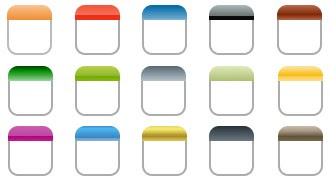
A calendar icon adds little beauty to a blog when used as post date header. You can see one here on this blog or might have seen on several other blogs around the web. And if you don't have it and wish to have a good looking one on your blog then grab it here for today I'm sharing fifteen (15) awesome calendar icons with you all to choose the best that suits your blog.

Calender Icons

DOWNLOAD (cal_icons.zip)

Now, most of you must be wondering what to do with the icon only, so here goes the installation steps and codes to see this in action on your blog;

  • Step 01:
Go to Blogger > Layout > Edit HTML > (click on) Download Full Template and save a backup of your template.
  • Step 02:
(Check) Expand Widget Templates, find ]]></b:skin> and now paste the following CSS codes just above it;

Code:
* Post Date Header Calendar Icon
-----------------------------------------------
*/
.calendar {
height: 50px;
width: 45px;
background: url(Calendar Icon Image Url Here) no-repeat;
font: normal 22px Arial;
color: #9C9284;
text-align: center;
margin: 0 4px 4px 0;
padding: 0 2px 0 0;
line-height: 100%;
float: left;
}
.calendar span {
height: 18px;
display: block;
font: normal 11px Arial;
color: #ffffff;
text-align: center;
padding-top: 0;
}

and replace the texts in RED with the Url of Calendar Icon that you have chosen as per your blog's look and uploaded (to the image hosting site you use), and you can also play with the texts in Blue in the above code to change the colour of the texts that will appear with in the calendar icon.
  • Step 03:
Now find <h3 class='post-title entry-title'> and paste following codes just before it;

Code:
<div class='calendar'>
<script type='text/javascript'>
var timestamp = &quot;<data:post.timestamp/>&quot;;
if (timestamp != &#39;&#39;) {
var timesplit = timestamp.split(&quot;,&quot;);
var date_yyyy = timesplit[2];
var timesplit = timesplit[1].split(&quot; &quot;);
var date_dd = timesplit[2];
var date_mmm = timesplit[1].substring(0, 3);
}
</script>
<span><script type='text/javascript'>document.write(date_mmm);</script></span>
<script type='text/javascript'>document.write(date_dd);</script>
</div>

and save the template.
  • Step 04:
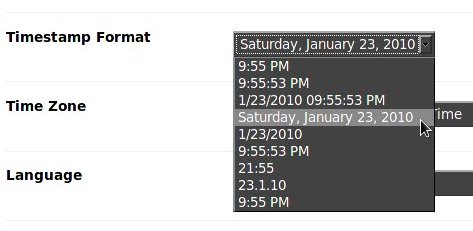
This is the most important step, move to (Blogger) > Settings > Formatting and scroll down to the Timestamp Format options and choose the format just as shown in the image below;

Timestamp Format
Screen-shot: Timestamp Format

Now, save your settings, check preview of your blog and enjoy a new look of your blog with a sweet smile on your face.

For any further help do leave a comment !

Read More...

0 Blogger | Free 125x125 AD Banners

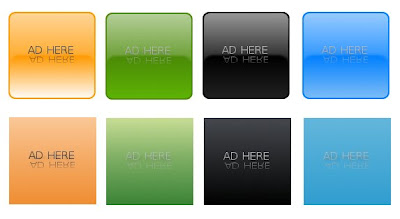
Today I'm going to share eight different 125x125 ad banners in four different colors and with two different styles. Confused?? Ok, it's a simple calculation, the quantity is eight, i.e.;
  1. Glossy Orange
  2. Glossy Green
  3. Glossy Black
  4. Glossy Blue
  5. 3D Orange
  6. 3D Green
  7. 3D Black
  8. 3D Blue
Now, the four different colors are;
  1. Orange
  2. Green
  3. Black
  4. Blue
And, the 2 styles are;
  1. Glossy with rounded corners.
  2. 3D (I used the 3D gradients)
125x125ADS
Screen-shot

DOWNLOAD (in zip format)

If you don't have 125x125 AD panel on your blogger blog and want to add then go to Blogger > Layout > Add a gadget (at sidebar & width of sidebar should be more than 250px) > HTML/Javascript and paste the following code in the content area;

Code:
<!-- 125x125 Banner AD Panel Starts-->
<center><a href='125x125 AD LINK URL'><img src='125x125 Banner Image URL'/></a> <a href='125x125 AD LINK URL'><img src='125x125 Banner Image URL'/></a></center>
<!-- 125x125 Banner AD Panel Ends-->

and replace the RED texts with the 125x125 banner image Url(s) & BLUE texts with link Url(s).
Now, save the widget and check preview.
Read More...

0 Six (06) Free Read More Buttons

"Read More" is a pretty blogger feature which allows visitors to have a look of a portion of text and image from the beginning of each post as summary instead of entire post. If a visitor wants to read the full post, simply clicks on "read more" link and gets redirected to the full post. Some bloggers use text link and some a image as "read more" link. So, if you are using image link and want to replace with some other image or if you are using text link and planning to replace with an image link here are six (06) simple though gorgeous "Read More" images for you all to use freely.


Download complete set in .zip format from here. Hope you will like them all.

Read More...

4 Four (04) Twitter Follow Me Buttons With Followers Counter

We have been using "Twitter - Follow Me" and "Followers Counter" buttons for a long, what if both comes together as a widget , it sounds good, isn't it! You can see one at the side-bar of this blog of mine, it looks cute.

Twitter-Buttons

So, here I'm sharing four of them with you all. But, make sure that you have registered you twitter account with twittercounter.com to get these widgets working for you.

To install this widget go to Blogger > Layout > Add a gadget > HTML/Javascript and paste any of the following codes in the content area and replace the texts in RED within the codes with your twitter user name/ID and save it.

  • Twitter Button Widget 01:
Twt-01

Code:
<style>
.twt_me {
background: transparent;
width:128px;
height:128px;
padding-bottom:15px;
}
.twt_me img {
border:0;
}
.counter {
margin:-8px 0 0 0;
}
</style>
<center><div class="twt_me">
<a href="http://twitter.com/nrashish"><img src="https://blogger.googleusercontent.com/img/b/R29vZ2xl/AVvXsEhJGA0gw4jptTCNpNjfQAuhHoCk9x25GIzpKXCzL2mUADh9m2F7n64m-4_8uGXPu1cGDoPCURtShMQf3Yzemakk9izcXnMKOyLtCiFYNknO6VfIPrDkYVYMPRobKG__qCxc_vvLrmx28SLT/s1600/twt2.png"/></a>
<div class="counter"><script language="JavaScript" src="http://twittercounter.com/embed/nrashish/444444/F5D0A9" type="text/javascript"></script></div>
</div></center>

  • Twitter Button Widget 02:
Twt-02

Code:
<style>
.twt_me {
background: transparent;
width:128px;
height:128px;
padding-bottom:15px;
}
.twt_me img {
border:0;
}
.counter {
margin:-8px 0 0 0;
}
</style>

<center><div class="twt_me">
<a href="http://twitter.com/nrashish"><img src="https://blogger.googleusercontent.com/img/b/R29vZ2xl/AVvXsEhS9Mc_Cm_2tPConkGMDFLmpGLGMStIwkXznMk_cLW25IfqC4N01NPf0Ead1ismLtmfm9nd1bjzibJLZKYdSVM15GifkHs1AEBRzcNpijeAgaDqoqDAeADVrhJEs35v15TTBl1Ea8fpLSAl/s1600/twt3.png"/></a>
<div class="counter"><script language="JavaScript" src="http://twittercounter.com/embed/nrashish/444444/FAAC58" type="text/javascript"></script></div>
</div></center>

  • Twitter Button Widget 03:
Twt-03

Code:
<style>
.twt_me {
background: transparent;
width:128px;
height:128px;
padding-bottom:15px;
}
.twt_me img {
border:0;
}
.counter {
margin:-15px 0 0 0;
}
</style>

<center><div class="twt_me">
<a href="http://twitter.com/nrashish"><img src="https://blogger.googleusercontent.com/img/b/R29vZ2xl/AVvXsEjsjrjUTQ-BsMsI9cPu_9CN2DSBfPKhk8z8TS76NYJs9LB5mGlQkS98mMGlgYctdZG_eN3f-s3sCPaM2Ww8Wd6woxMtOh8IFwCygQ-Kgs5SrCFenCIryIaSXTR7oPqfYqucr1FvW2iM-sXe/s1600/twt4.png"/></a>
<div class="counter"><script language="JavaScript" src="http://twittercounter.com/embed/nrashish/FFFFFF/0174DF" type="text/javascript"></script></div>
</div></center>

  • Twitter Button Widget 04:
Twt-04
Code:
<style>
.twt_me {
background: transparent;
width:128px;
height:128px;
padding-bottom:15px;
}
.twt_me img {
border:0;
}
.counter {
margin:-20px 0 0 0;
}
</style>

<center><div class="twt_me">
<a href="http://twitter.com/nrashish"><img src="https://blogger.googleusercontent.com/img/b/R29vZ2xl/AVvXsEjjKItu2OZUyMHz-iv9C0t3U72GLSo2_jQfLaIyO1O53c-fU-KflKmWdDhWgdTIpMtSGVmoOEEARQ9XKQEgGUoHYEzwWJLnQgJQ4671RQP2n_v9IL4Aamp4hjKRuGT8AYlO3G4DuCTM0GKB/s1600/twt5.png"/></a>
<div class="counter"><script language="JavaScript" src="http://twittercounter.com/embed/nrashish/FFFFFF/0174DF" type="text/javascript"></script></div>
</div></center>

For any further help with these widgets feel free to come through the comment section!

Read More...

0 Image With Hover Effect As Blog Title In Blogger


Title Image
We always prefer to use image as a blog header title instead of text, we even want it to be clickable and always be redirecting to the homepage, what else? Adding some beauty, like hover effect! Well, that's not possible if we simply add an image as title through "Page Header" widget in "Layout" section of Blogger and choosing "Instead Of Title and Description". Then how? Yup! Not that much difficult, its just a piece of cake.
Have a look to the DEMO HERE, and now lets move to the coding part. Log on to Blogger > Layout > (Make sure you are not using any image as blog title, if using get back to the text mode) > Edit Html > (Take a backup of your template) > Expand Widgets Template and find (Ctrl + F) ]]></b:skin> and paste following CSS codes just above it;
Code:
.title_H {
background: url(Your Blog Title's Main Image URL);
width:305px;
height:57px;
padding:0;
margin:0;
}
.title_H:hover {
background: url(Your Blog Title's Hover Image URL);
}

In the above CSS code replace the RED text with the URL of the main title image for your blog and the BLUE text with hover image URL. The PINK texts are for the width and height of the images which you have to change in respective of your main title and hover images' width and height (main title image's and hover image's width and height should be equal).

Now, find (Ctrl+F) the follwing series of code;
Code:
<b:includable id='title'>
<b:if cond='data:blog.url == data:blog.homepageUrl'>
<data:title/>
<b:else/>
<a expr:href='data:blog.homepageUrl'><data:title/></a>
</b:if>
</b:includable>

and replace it with the series of code given below:
Code:
<b:includable id='title'>
<b:if cond='data:blog.url == data:blog.homepageUrl'>
<a expr:href='data:blog.homepageUrl'><p class='title_H'/></a>
<b:else/>
<a expr:href='data:blog.homepageUrl'><p class='title_H'/></a>
</b:if>
</b:includable>

And, finally, save the template and enjoy a new blog title style!
Read More...

0 Add Jquery Based Sliding Advertisement Panel In Blogger


This is a wonderful script that attracts your curious blog visitors to find out what's hiding behind it, just clicking the button shows and hides the advertisement in sliding panel.

Slidedown

Image 1: without Ad Banner before sliding

Slideup

Image 2: with Ad Banner after sliding


This is a simnple though awesome css and jquery based add-on for blogger (can be used on other websites too) which carries your adsense or other ads without eating any space on your blog or site. You can assume through the images above what it actually does or you can try it on my this blog as live demo, to do so just click the dropbuttonbutton on top of this blog (below blog title image) and see the magic in action.

Now, let's move to the installation part. So, to have it working on your blog log on to Blogger > Layout > Edit HTML > (Take Backup of your template) and find (Ctrl + F) ]]></b:skin> and paste the following CSS code just above it:

Code:
#panel {
height: 100px;
display: none;
}
.slide {
margin: 0;
padding: 0;
}
.btn-slide { padding-left:15px;
background: transparent url(https://blogger.googleusercontent.com/img/b/R29vZ2xl/AVvXsEi1roNPoFeTIKmw0zLPkv1cIe5vZdAgaeeJ8yTJjXrxwSTIm2LEc_d9nWqj8vivSK_M_edIymWamS19O2Q6bwkfJr-quZ8lgrUl9GTmiDuoSsn_ZXaa380_cb5Hcs4ZSEYPFmlmfqSLhtet/s1600/001_53.png) no-repeat;
width:13px;
height:13px;
_width:13px;
_height:13px;
}
.btn-slide:hover { background: transparent url(https://blogger.googleusercontent.com/img/b/R29vZ2xl/AVvXsEj_W5_bxOipqk8NfnsXqwmoMwsFI9sX2fFUn63C8NeeRqEZtohdl-Judz0ZRZpofUa2GXFMo8t9Gbn7gg5Zo2UEM_qkzDdlsY77D_IJ4rBCRgq4kfBJK_BhV2pqOFbMedcX6uiukZpbWspz/s1600/001_51.png) no-repeat;
width:13px;
height:13px;
_width:13px;
_height:13px;
}
.active { background: transparent url(https://blogger.googleusercontent.com/img/b/R29vZ2xl/AVvXsEjuosMHeV5-UCqfunsLVrLoNsQwGV5-FOtz-WDNE_p5c9Y51JEDmYIDYSmzo7LArF93Rj4fxJlovFI108xPWGNc4v-E45yCSKyRsqADEOJSZhx0Go8gbQGG1SCkse3hpmgJh4cLh_sebYBC/s1600/001_54.png) no-repeat;
width:13px;
height:13px;
_width:13px;
_height:13px;
}
.active:hover { background: transparent url(https://blogger.googleusercontent.com/img/b/R29vZ2xl/AVvXsEhGYT7iHSo6CpvnvSDaL7Yw0-ZENRd9h2bI6vwH-TQWg_XD_i0CqgBC5bBeoe2thtXeawWqHRNheIuG0-Prdfk5zv-6b1LPln5je44NaXEua7ny-qeNc2tEyti5IWLoPVh4JTFcnj3VduAV/s1600/001_52.png) no-repeat;
width:13px;
height:13px;
_width:13px;
_height:13px;
}

In the above CSS code you can adjust the height of the sliding panel by changing values in RED text.

Next step is to find (Ctrl + F) </head> and paste the following Javascript Code just above it:

Code:
<script src='http://ajax.googleapis.com/ajax/libs/jquery/1.2.6/jquery.min.js' type='text/javascript'/>
<script type='text/javascript'>
$(document).ready(function(){

$(&quot;.btn-slide&quot;).click(function(){
$(&quot;#panel&quot;).slideToggle(&quot;slow&quot;);
$(this).toggleClass(&quot;active&quot;); return false;
});


});
</script>


And the most important point, if the above Javascript Code does not work on your blog then replace it with the following one:

Code:
<script src='http://ajax.googleapis.com/ajax/libs/jquery/1.2.6/jquery.min.js' type='text/javascript'/>
<script type='text/javascript'>
jQuery(document).ready(function(){

jQuery(&quot;.btn-slide&quot;).click(function(){
jQuery(&quot;#panel&quot;).slideToggle(&quot;slow&quot;);
jQuery(this).toggleClass(&quot;active&quot;); return false;
});


});
</script>


Now, save the template and move to Layout > Add A Gadget > HTML/Javascript and paste the following code in the content area and replace the text in Blue color with your Adsense (or any ad code):

Code:
<div id='panel'>
YOUR ADSENSE AD CODE HERE
</div>
<p class='slide'><a class='btn-slide' href='#' title='Click To Slide'></a></p>

Yes! it's done now. Save the template and view your blog and slide the panel.
Read More...

0 Social Media Icons With Mouse Over Effect Code


Social Media Icons

Here I'm sharing three (03) flavours of social media icons with mouse over effect codes with you all. The flavours are: Glossy Green, Glossy Orange and Glossy Pink. and the icons included are Feedburner, Digg, Delicious, Twitter, Reddit, Facebook, StumbleUpon and Yahoo. Whenever you hover your cursor on any of these icons that particular icon gets highlighted, basically it is the opacity of image that changes through these codes, this effect works with both IE and Firefox. Try this effect by just hovering your cursor over any icon image below.

Glossy Green Social Media Icons:
FeedburnerDiggDeliciousTwitterRedditFacebookStumbleYahoo
Code:
<a href='YOUR FEEDBURNER LINK' target='_blank' title='Feedburner'><img alt='Feedburner' onmouseout='this.style.opacity=0.4;this.filters.alpha.opacity=40' onmouseover='this.style.opacity=1;this.filters.alpha.opacity=100' src='http://1.bp.blogspot.com/_A6olrRvpvSc/Swl8qctY6AI/AAAAAAAAAh0/w1cx20_hxgw/s1600/feedburner.png' style='opacity:0.4;filter:alpha(opacity=40)' width="72" height="72" border="0"/></a>

<a href='#nogo' target='_blank' title='Digg'><img alt='Digg' onmouseout='this.style.opacity=0.4;this.filters.alpha.opacity=40' onmouseover='this.style.opacity=1;this.filters.alpha.opacity=100' src='https://blogger.googleusercontent.com/img/b/R29vZ2xl/AVvXsEh3bolwTMkrNt9IufyruaOSUYejUvMoXYASw8mPmVKyQNpTAi_Gq1XdUc2nw3DPDTsDPcMrZeioyEoKYnmgouZ-0esHgip-lkBsiEsLrjaGtl8u9jf0Pv9lm5MbHfJqDtk-eADQgrMBOGwj/s1600/digg.png' style='opacity:0.4;filter:alpha(opacity=40)' width="72" height="72" border="0"/></a>

<a href='#nogo' target='_blank' title='Twitter'><img alt='Delicious' onmouseout='this.style.opacity=0.4;this.filters.alpha.opacity=40' onmouseover='this.style.opacity=1;this.filters.alpha.opacity=100' src='https://blogger.googleusercontent.com/img/b/R29vZ2xl/AVvXsEgREp_Vs3gSwSIVRs078jY11p9oiVnUzRKHEIo8qGykO2cr63-yPmb39grDVG7IPFUzJRW0VxC_c3vQHwZg-XocWCd0RgGGQsggXR5FCNjjLIibEriA9dO_evaAfrpTtK9FLzGik3IzC2mG/s1600/delecious.png' style='opacity:0.4;filter:alpha(opacity=40)' width="72" height="72" border="0"/></a>

<a href='#nogo' target='_blank' title='Twitter'><img alt='Twitter' onmouseout='this.style.opacity=0.4;this.filters.alpha.opacity=40' onmouseover='this.style.opacity=1;this.filters.alpha.opacity=100' src='https://blogger.googleusercontent.com/img/b/R29vZ2xl/AVvXsEiUsLch3tTiK3rGaLX6yO9QkZDhZ5aQXHUukM35yaU4OkmFn4-9GRpQ8n0-e5hRYfY3fwusfXn8LGLOfr8-ZCR-c-MV52yVzfA3z3tjrFKTOinYWZ0m9EyDZztQDav-0YFp803y00lLba-6/s1600/twitter.png' style='opacity:0.4;filter:alpha(opacity=40)' width="72" height="72" border="0"/></a>

<a href='#nogo' target='_blank' title='Reddit'><img alt='Reddit' onmouseout='this.style.opacity=0.4;this.filters.alpha.opacity=40' onmouseover='this.style.opacity=1;this.filters.alpha.opacity=100' src='https://blogger.googleusercontent.com/img/b/R29vZ2xl/AVvXsEi_Ppxq1CDbAzl99m7RBO6Tk9HgTbHVgYQJ7tCHupBPVdTI7eKei47EeiaqOQFOlLoyJL5XesCmfuEhFEx7Z1V5ql0rwrK44qLkQ1tsr2YuZPl-nKl2xvhkksjSX1kdTR_Qdy6r2yfvW8zK/s1600/reddit.png' style='opacity:0.4;filter:alpha(opacity=40)' width="72" height="72" border="0"/></a>

<a href='#nogo' target='_blank' title='Facebook'><img alt='Facebook' onmouseout='this.style.opacity=0.4;this.filters.alpha.opacity=40' onmouseover='this.style.opacity=1;this.filters.alpha.opacity=100' src='https://blogger.googleusercontent.com/img/b/R29vZ2xl/AVvXsEh8idDYVMIFO_L1xMftCnk4wsdJ3ycAX86GoxmjXeeNj4xOr-5tJnpyuvOCstxBMiLjH9IvOqYqhupr_G0Bwaea0XUI5fVTFj0DC7WtJaggCowSgwRmqBC7Oblto9xGbYDTdzguBYMQT52-/s1600/facebook.png' style='opacity:0.4;filter:alpha(opacity=40)' width="72" height="72" border="0"/></a>

<a href='#nogo' target='_blank' title='Stumble'><img alt='Stumble' onmouseout='this.style.opacity=0.4;this.filters.alpha.opacity=40' onmouseover='this.style.opacity=1;this.filters.alpha.opacity=100' src='https://blogger.googleusercontent.com/img/b/R29vZ2xl/AVvXsEhgmUwge123MoJu5sq0WuqxdyDWlCFLRPhgNUNrnsz9aXGwbB0OvtiEKDUlAgnh3rhjuoIq3GWCrUKL2wQYfhnGv3brRFOMSkLJl_fGsHEAe55pPzh68fgHHRwpcuVtJjBd6-WMa61XNZZz/s1600/stumbleupon.png' style='opacity:0.4;filter:alpha(opacity=40)' width="72" height="72" border="0"/></a>

<a href='#nogo' target='_blank' title='Yahoo'><img alt='Yahoo' onmouseout='this.style.opacity=0.4;this.filters.alpha.opacity=40' onmouseover='this.style.opacity=1;this.filters.alpha.opacity=100' src='https://blogger.googleusercontent.com/img/b/R29vZ2xl/AVvXsEiIxQH_J6NYRIpQrJ4o1Tbn9OuTBvXEu0d8VRVjT0KmWPVsPeF_e5fmP4A1-sR0Mu4BLGxzwYFYVuxaOI6pcdEwLyp9phNRx0lwU8yePYT5SRpH1H0lyNlBzYaTIBWCjk1Fp3qaI8uYtt0D/s1600/yahoo.png' style='opacity:0.4;filter:alpha(opacity=40)' width="72" height="72" border="0"/></a>


Glossy Orange Social Media Icons:
FeedburnerDiggDeliciousTwitterRedditFacebookStumbleYahoo

Code:
<a href='YOUR FEEDBURNER LINK' target='_blank' title='Feedburner'><img alt='Feedburner' onmouseout='this.style.opacity=0.4;this.filters.alpha.opacity=40' onmouseover='this.style.opacity=1;this.filters.alpha.opacity=100' src='https://blogger.googleusercontent.com/img/b/R29vZ2xl/AVvXsEgihaNyk1293TQ9sdBMBPmoafDQH-3DICOUWFL2Jr70zruPOL6uf8N00ujjii6opp_MxO6MC9Opea3EvMnTrWWWA3mtCsPKyRn0-vX4phZFJBGirEc75UEZA287vi-vsRMQPTuibnUNRVue/s1600/feedburner.png' style='opacity:0.4;filter:alpha(opacity=40)' width="72" height="72" border="0"/></a>

<a href='#nogo' target='_blank' title='Digg'><img alt='Digg' onmouseout='this.style.opacity=0.4;this.filters.alpha.opacity=40' onmouseover='this.style.opacity=1;this.filters.alpha.opacity=100' src='https://blogger.googleusercontent.com/img/b/R29vZ2xl/AVvXsEhJizpxkanoGgSP5yyu64EjBz6leqpi2rp74hGWiSZKAC5jSKs7GTwKJyk7jyc4FMMuo_q7ksM2UujjU5j7t1zrKC37LxybvqWKlQ2e5ShyAk0bUgGqhk5KUPJuIWndQ_kYLthWhgAuHKKQ/s1600/digg.png' style='opacity:0.4;filter:alpha(opacity=40)' width="72" height="72" border="0"/></a>

<a href='#nogo' target='_blank' title='Twitter'><img alt='Delicious' onmouseout='this.style.opacity=0.4;this.filters.alpha.opacity=40' onmouseover='this.style.opacity=1;this.filters.alpha.opacity=100' src='https://blogger.googleusercontent.com/img/b/R29vZ2xl/AVvXsEhLJJzaOctef1YFBn-KfE0YHTWMAtq1bKf-6iToHhM5cfAdQgz1ympd8UL-jAKntTDHNbK_2xpwQobycMTpSZoMupVXt_DLa8hg2Ee1yTdDK3zdIS_0_pCN2D8QxYpyvr5YtRwsKXzIvyKu/s1600/delicious.png' style='opacity:0.4;filter:alpha(opacity=40)' width="72" height="72" border="0"/></a>

<a href='#nogo' target='_blank' title='Twitter'><img alt='Twitter' onmouseout='this.style.opacity=0.4;this.filters.alpha.opacity=40' onmouseover='this.style.opacity=1;this.filters.alpha.opacity=100' src='https://blogger.googleusercontent.com/img/b/R29vZ2xl/AVvXsEiS5_eJdPeyR5QpinKs09Nrvt2hGHtAYhT7l7iI4ABVSl1CCaGkDoJMCd2KEgjMnlx9VG70gO7SscO7uW-uBhW4BisErTVYkiVaZlUMszPYenDj1kPzPiEfJORlRp7Z-_1a3RZjLo67HIW2/s1600/twitter.png' style='opacity:0.4;filter:alpha(opacity=40)' width="72" height="72" border="0"/></a>

<a href='#nogo' target='_blank' title='Reddit'><img alt='Reddit' onmouseout='this.style.opacity=0.4;this.filters.alpha.opacity=40' onmouseover='this.style.opacity=1;this.filters.alpha.opacity=100' src='https://blogger.googleusercontent.com/img/b/R29vZ2xl/AVvXsEhPZbjxCd49RqgfnOTJKG7k3Id5ut8SzAivBuCvS1azB2E8L0EkrLHu8CLjxHatvXOqGF7CpMCvQB4uCngChwbvAEoyJaAKBzy_8vZbSPCg41uYcY4SN5g5kY4KVq1KfFgyGrkJ85Eas4Lq/s1600/reddit.png' style='opacity:0.4;filter:alpha(opacity=40)' width="72" height="72" border="0"/></a>

<a href='#nogo' target='_blank' title='Facebook'><img alt='Facebook' onmouseout='this.style.opacity=0.4;this.filters.alpha.opacity=40' onmouseover='this.style.opacity=1;this.filters.alpha.opacity=100' src='https://blogger.googleusercontent.com/img/b/R29vZ2xl/AVvXsEjN9D_Iz2X3LazzIDngOlnaJ3nbv8CfcNBN6rmUGsAXzOuvmU52ELkcxcIAXqZU7B3Jo2BUEhMNoZo04WHOqtLDTPYmVUJ626bEC-6e_sJ_qD_ifItceGBOzl7igEHozy6vVCjKr-rrTYMi/s1600/facebook.png' style='opacity:0.4;filter:alpha(opacity=40)' width="72" height="72" border="0"/></a>

<a href='#nogo' target='_blank' title='Stumble'><img alt='Stumble' onmouseout='this.style.opacity=0.4;this.filters.alpha.opacity=40' onmouseover='this.style.opacity=1;this.filters.alpha.opacity=100' src='https://blogger.googleusercontent.com/img/b/R29vZ2xl/AVvXsEi9_bdYa2GBFJO2uIejsp5tRLMK1Rz-McFUSt3AH15_JMdRcur3AuBnDluZ6GgNqAuas8sBgZTKm0TdmGZgSScYdOWFSB9EvTKLu8vuCzy1D2DjHCjleM3xpkTKvXbHPBqvonxyEa8wWn5z/s1600/stumbleupon.png' style='opacity:0.4;filter:alpha(opacity=40)' width="72" height="72" border="0"/></a>

<a href='#nogo' target='_blank' title='Yahoo'><img alt='Yahoo' onmouseout='this.style.opacity=0.4;this.filters.alpha.opacity=40' onmouseover='this.style.opacity=1;this.filters.alpha.opacity=100' src='https://blogger.googleusercontent.com/img/b/R29vZ2xl/AVvXsEj3HRuwitLsUIMuxGjui578v9ZnI9kFmESL97f7k2ScI8qluD20EWTOGfFW0GjlEqwU5p1dSDvZRGhF-alv44hs35JOmtPo3qy8qAKTOGFYuqB5ooqCmBx4N4ZT6Ue94C1l9PMR3jgWOHFe/s1600/yahoo.png' style='opacity:0.4;filter:alpha(opacity=40)' width="72" height="72" border="0"/></a>


Glossy Pink Social Media Icons:

FeedburnerDiggDeliciousTwitterRedditFacebookStumbleYahoo
Code:
<a href='YOUR FEEDBURNER LINK' target='_blank' title='Feedburner'><img alt='Feedburner' onmouseout='this.style.opacity=0.4;this.filters.alpha.opacity=40' onmouseover='this.style.opacity=1;this.filters.alpha.opacity=100' src='https://blogger.googleusercontent.com/img/b/R29vZ2xl/AVvXsEhh3l37cGQYKKFUCSWwzVsdWqmASRuCQcOJFhvwlcN_jF-0kJkPshZlsHzI9vwd_XMxis6lo5jis8oRelONN0ijUG7GrMRGOv7reivGMqIwQNYYnrBw_grRfmqC6xZLwaUS4V8hUbzk_HpI/s1600/feedburner.png' style='opacity:0.4;filter:alpha(opacity=40)' width="72" height="72" border="0"/></a>

<a href='#nogo' target='_blank' title='Digg'><img alt='Digg' onmouseout='this.style.opacity=0.4;this.filters.alpha.opacity=40' onmouseover='this.style.opacity=1;this.filters.alpha.opacity=100' src='https://blogger.googleusercontent.com/img/b/R29vZ2xl/AVvXsEgHy3YFDvdQTQ5yizMVgPVqUISBVwjWvXsNjb3YuqEqAWtUWx9sVTQOxzrks7SGWR7v8IuQB-VOT6vBEpeg4t0nfuDZVPKlLcqmmvhuh9PLY6ZBtBUaSFhRWVg67RYLfIh5YujMnTKONWSZ/s1600/digg.png' style='opacity:0.4;filter:alpha(opacity=40)' width="72" height="72" border="0"/></a>

<a href='#nogo' target='_blank' title='Twitter'><img alt='Delicious' onmouseout='this.style.opacity=0.4;this.filters.alpha.opacity=40' onmouseover='this.style.opacity=1;this.filters.alpha.opacity=100' src='https://blogger.googleusercontent.com/img/b/R29vZ2xl/AVvXsEjuEIwMM3car5X_WIDiosQD0nfGfStZmA-EFgAOMrmZMcDlzdc0HPLJHaatdXxdmaENqGPgdae7VimYo7G_dp2qU17s273ImMSrgTIoOYv4oWubo4Bea0DDg81zmj70I78ZFpV12VARvwJ8/s1600/delicious.png' style='opacity:0.4;filter:alpha(opacity=40)' width="72" height="72" border="0"/></a>

<a href='#nogo' target='_blank' title='Twitter'><img alt='Twitter' onmouseout='this.style.opacity=0.4;this.filters.alpha.opacity=40' onmouseover='this.style.opacity=1;this.filters.alpha.opacity=100' src='https://blogger.googleusercontent.com/img/b/R29vZ2xl/AVvXsEi0uUJEg4uKe2oMSE2o1tYmi6Ny-ztZFsjJYHKySdzzRT4iO9d-9Qi0aZU6pq_hWbORR-XazjvSHE2VxZtZOGMuuaqqRYZ2TCtA37_GqVuIMLfBDMLLBUQ8Fa0DuTUtTHg7O5GXjVu83Qao/s1600/twitter.png' style='opacity:0.4;filter:alpha(opacity=40)' width="72" height="72" border="0"/></a>

<a href='#nogo' target='_blank' title='Reddit'><img alt='Reddit' onmouseout='this.style.opacity=0.4;this.filters.alpha.opacity=40' onmouseover='this.style.opacity=1;this.filters.alpha.opacity=100' src='https://blogger.googleusercontent.com/img/b/R29vZ2xl/AVvXsEiX-mqZUX7DQAnehOd3eL_-UaweA7bYO5Vzxzz8A5I5WpZwiZrAtv1JhOJnEPx_gk8rMQG-YrAcwR90d6nage_eVkqkaPC0K4mZXJW5GfKrs2Sz6Tnopbbp82bX9IC-2igeYQ88JyyRXbas/s1600/reddit.png' style='opacity:0.4;filter:alpha(opacity=40)' width="72" height="72" border="0"/></a>

<a href='#nogo' target='_blank' title='Facebook'><img alt='Facebook' onmouseout='this.style.opacity=0.4;this.filters.alpha.opacity=40' onmouseover='this.style.opacity=1;this.filters.alpha.opacity=100' src='https://blogger.googleusercontent.com/img/b/R29vZ2xl/AVvXsEhthbkFsj_bONXTgyUdNd_A5PJyKQLPWIbp-YBhgAcWGNofsOlcgwB6XTzU2h6IZD0_n_dWdWyrAA9I-lfmQgjFb_cDFX9XJm-wUi3tVunoyyhDhMEGKmxPTrcx5P0a6YqollRc0UlkodZj/s1600/facebook.png' style='opacity:0.4;filter:alpha(opacity=40)' width="72" height="72" border="0"/></a>

<a href='#nogo' target='_blank' title='Stumble'><img alt='Stumble' onmouseout='this.style.opacity=0.4;this.filters.alpha.opacity=40' onmouseover='this.style.opacity=1;this.filters.alpha.opacity=100' src='https://blogger.googleusercontent.com/img/b/R29vZ2xl/AVvXsEjwrhgS6X3CJjkuK3fyh5VGnvoJWV5s3xnjUuBrxEMlBAr-_n0UMphpyvJsbE0vFUylVHyjFQ30XXrvRZEhMqXaOJaZwfqxGfDz6oCsVKv72Po4D6RfGJ1SzzYKk6JILxpaCzgR_3nNKWUQ/s1600/stumbleupon.png' style='opacity:0.4;filter:alpha(opacity=40)' width="72" height="72" border="0"/></a>

<a href='#nogo' target='_blank' title='Yahoo'><img alt='Yahoo' onmouseout='this.style.opacity=0.4;this.filters.alpha.opacity=40' onmouseover='this.style.opacity=1;this.filters.alpha.opacity=100' src='https://blogger.googleusercontent.com/img/b/R29vZ2xl/AVvXsEjcx1bQNhAOH0BQvUzGgYFH9r5GCU4ZoDqYtUBJYqUH3XiZdb7wYncDMsvRtWIJjqmHrBQq26Q8gn3kLQ_Qbdv96ig0rEZVKnQz-pbksbmNSLKJ3YzPPpmF1JbiiZvk1TR7nCIm1AmgYm4B/s1600/yahoo.png' style='opacity:0.4;filter:alpha(opacity=40)' width="72" height="72" border="0"/></a>

Before adding the above codes to your blog or website replace the Blue text in above codes with your feedburner link URL and the texts in Red with the bookmarking link of the respective social media networking service.

Icons credit goes to icons.mysitemyway.com

Read More...

5 Tag Cloud Widget With Columns And Tag Image Bullet


All new "Tag Cloud Widget" for blogger with "Columns" and "Tag Image as Bullet" before all tags. There are two codes I have given below for this widget, this first one is for those blogs which have around 350px width for sidebar widgets and the second one is for those blogs which have above or around 260px width for sidebar widgets but below 300px. This widget shows tags in 3 columns and there are 5 rows of tags in each column. See the image below or a DEMO HERE.

Tag Cloud

To install the widget Go to Blogger > Layout > Add A Gadget (at sidebar) >

HTML/JavaScript
HTML/JavaScript
Add

and paste the following code in the content area:

Code for blogs with around 350px width of sidebar widget:
<!-- Tag Cloud Widget Starts Here By http://www.aroundweb.co.cc-->
<style type="text/css">
.main_part{
float:left;
width:100%;
margin:0 0 0 0 auto;
}
.block{
float:left;
width:100px;
margin:0 0 0 0 auto;
padding-left:10px;
}
.block .title_2{
background:transparent url(https://blogger.googleusercontent.com/img/b/R29vZ2xl/AVvXsEiLWBT9c9heTDp0FUFqlrg6g8I-b4a7toXvT5En7jX05PqC9LYLEYORUxkT9PvOD5M-nzmx9l2l8-54zB5yO0DmEIvnKM9N8KLJ9tvoO43CNZ9VyWpJtkWI9sqgIKrFEpLIv9fkvpG7sBmk/s1600/tag.png) no-repeat scroll left center;
font-family:serif, georgia;
font-size:9px;
color:;
text-decoration:none;
text-align:left;
font-weight:normal;
text-transform:uppercase;
margin:1px;
padding-left:12px;
}
.title_2:visited{color:;text-decoration:none}
.title_2:hover{color:;text-decoration:none}
.block a{
display:block;
text-decoration:none}
</style>
<div class="main_part">
<div class="block">
<!-- Column One Starts -->
<a href="YOUR BLOG URL/search/label/label1?&amp;max-results=20" class="title_2">label1</a>
<a href="YOUR BLOG URL/search/label/label2?&amp;max-results=20" class="title_2">label2</a>
<a href="YOUR BLOG URL/search/label/label3?&amp;max-results=20" class="title_2">label3</a>
<a href="YOUR BLOG URL/search/label/label4?&amp;max-results=20" class="title_2">label4</a>
<a href="YOUR BLOG URL/search/label/label5?&amp;max-results=20" class="title_2">label5</a>
<!-- Column One Ends -->
</div>
<div class="block">
<!-- Column Two Starts -->
<a href="YOUR BLOG URL/search/label/label6?&amp;max-results=20" class="title_2">label6</a>
<a href="YOUR BLOG URL/search/label/label7?&amp;max-results=20" class="title_2">label7</a>
<a href="YOUR BLOG URL/search/label/label8?&amp;max-results=20" class="title_2">label8</a>
<a href="YOUR BLOG URL/search/label/label9?&amp;max-results=20" class="title_2">label9</a>
<a href="YOUR BLOG URL/search/label/label10?&amp;max-results=20" class="title_2">label10</a>
<!-- Column Two Ends -->
</div>
<div class="block">
<!-- Column Three Starts -->
<a href="YOUR BLOG URL/search/label/label11?&amp;max-results=20" class="title_2">label11</a>
<a href="YOUR BLOG URL/search/label/label12?&amp;max-results=20" class="title_2">label12</a>
<a href="YOUR BLOG URL/search/label/label13?&amp;max-results=20" class="title_2">label13</a>
<a href="YOUR BLOG URL/search/label/label14?&amp;max-results=20" class="title_2">label14</a>
<a href="YOUR BLOG URL/search/label/label15?&amp;max-results=20" class="title_2">label15</a>
<!-- Column Three Ends -->
</div></div>
<!-- Tag Coud Widget Ends Here-->


Or

Code for blogs with around 260px width of sidebar widget:
<!-- Tag Cloud Widget Starts Here By http://www.aroundweb.co.cc-->
<style type="text/css">
.main_part{
float:left;
width:100%;
margin:0 0 0 0 auto;
}
.block{
float:left;
width:75px;
margin:0 0 0 0 auto;
padding-left:10px;
}
.block .title_2{
background:transparent url(https://blogger.googleusercontent.com/img/b/R29vZ2xl/AVvXsEiLWBT9c9heTDp0FUFqlrg6g8I-b4a7toXvT5En7jX05PqC9LYLEYORUxkT9PvOD5M-nzmx9l2l8-54zB5yO0DmEIvnKM9N8KLJ9tvoO43CNZ9VyWpJtkWI9sqgIKrFEpLIv9fkvpG7sBmk/s1600/tag.png) no-repeat scroll left center;
font-family:serif, georgia;
font-size:9px;
color:;
text-decoration:none;
text-align:left;
font-weight:normal;
text-transform:uppercase;
margin:1px;
padding-left:12px;
}
.title_2:visited{color:;text-decoration:none}
.title_2:hover{color:#FFFFFF;text-decoration:none}
.block a{
display:block;
text-decoration:none}
</style>
<div class="main_part">
<div class="block">
<!-- Column One Starts -->
<a href="YOUR BLOG URL/search/label/label1?&amp;max-results=20" class="title_2">label1</a>
<a href="YOUR BLOG URL/search/label/label2?&amp;max-results=20" class="title_2">label2</a>
<a href="YOUR BLOG URL/search/label/label3?&amp;max-results=20" class="title_2">label3</a>
<a href="YOUR BLOG URL/search/label/label4?&amp;max-results=20" class="title_2">label4</a>
<a href="YOUR BLOG URL/search/label/label5?&amp;max-results=20" class="title_2">label5</a>
<!-- Column One Ends -->
</div>
<div class="block">
<!-- Column Two Starts -->
<a href="YOUR BLOG URL/search/label/label6?&amp;max-results=20" class="title_2">label6</a>
<a href="YOUR BLOG URL/search/label/label7?&amp;max-results=20" class="title_2">label7</a>
<a href="YOUR BLOG URL/search/label/label8?&amp;max-results=20" class="title_2">label8</a>
<a href="YOUR BLOG URL/search/label/label9?&amp;max-results=20" class="title_2">label9</a>
<a href="YOUR BLOG URL/search/label/label10?&amp;max-results=20" class="title_2">label10</a>
<!-- Column Two Ends -->
</div>
<div class="block">
<!-- Column Three Starts -->
<a href="YOUR BLOG URL/search/label/label11?&amp;max-results=20" class="title_2">label11</a>
<a href="YOUR BLOG URL/search/label/label12?&amp;max-results=20" class="title_2">label12</a>
<a href="YOUR BLOG URL/search/label/label13?&amp;max-results=20" class="title_2">label13</a>
<a href="YOUR BLOG URL/search/label/label14?&amp;max-results=20" class="title_2">label14</a>
<a href="YOUR BLOG URL/search/label/label15?&amp;max-results=20" class="title_2">label15</a>
<!-- Column Three Ends -->
</div></div>
<!-- Tag Coud Widget Ends Here-->

Now, replace the Red text in above code with the URL of your blog (eg. http://yourblog.blogspot.com) and the Green text with the respective labels as per your blog. Those having different sizes of sidebar can edit the Blue text and adjust the width size as per their blogs sidebar width.

You can change the tag image icon with the following 2 options by replacing the Pink text in above code:

Green

Code:
https://blogger.googleusercontent.com/img/b/R29vZ2xl/AVvXsEjj0itqE93KctvNOa4tIl0B0tRpzdhGDfriUD5bLkCaArlfOxnN7w5vJbqD_455hac-hDQObYDhTTjt4GTvEzulozuG_xtSi-EHN5N_f9eD40djr4kGzNO3nw4_-5XgMnaeQxPwwzC_w5rY/s1600/tag_green.png


Orange

Code:
https://blogger.googleusercontent.com/img/b/R29vZ2xl/AVvXsEjcGq1niyhMqTm1hw6ru4j7z4zlrzD7w3QIhUfZLVg9S2Y_nvcsVcJAjXj3B1iIN6wEqX_UbwrDL589yS1FcpEnU0zwIhBI2TbMF2Zz58pXG-9jbhu_mzOMOGZmkrhPEC0Gm-payymFopi8/s1600/tag_orange.png


Preview your blog and if all fine just save the template & enjoy!

For any further query on this widget please use the comments section.

Read More...